Vmessage_handler
The vmessage_handler utility monitors a string channel and displays messages whenever new values are put into the channel.
To run vmessage_handler
-
Enter the following at the system prompt:
vmessage_handler <string channel name>
Parameters
This utility requires one parameter, the <string channel name>, and displays a message based on the various commands (below) that can be sent to the string channel along with the message.
Commands
black, red, or yellow
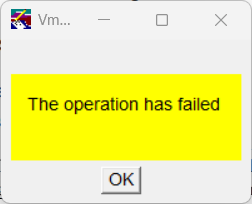
Use these commands (separately) to set the background colors of messages; or, use the color command, below. For example, if the string "The operation has failed (yellow)" is put into the string channel, a message with the words "The operation has failed" will display on the workstation, with a yellow background and black text, as shown in Figure 27
Figure27 - Vmessage_handler example of color display
color
color=<n>
The color command specifies a color number in which to display the message, such as
-
0 for black background, white foreground (text),
-
1 for red background, white foreground (text),
-
2 for yellow background, black foreground (text),or any other number to use the workstation default colors.display
display=<node:screen>
The display command specifies the screen on which you want the message to appear by entering the standard X Windows display string, such as node:0 . The default is the screen on which the message utility is running.
Tip Vdraw puts the X Windows display string of the screen on which it displays into the client user info string (for more information, refer to vdb_init_client_user_info in your Vsystem Vaccess Reference Guide). You can use this method to determine where a put to the database came from for displaying messages (through Vmessage_handler). Do so by calling the vdb_get_client_user_info routine in the handler of the channel and sending the user info string as the value of the display command, as well as the message to a string that Vmessage_handler is watching. For an example of a handler setting up a message string, see the file display_test.c in the examples handlers directory.
|
VMS When using this method on OpenVMS, be sure to specify the screen Vdraw is to display windows on by either defining the DECW$DISPLAY logical as node:0 or by starting Vdraw with -display node:0 on the command line. Otherwise, you may get an error from the Vmessage_handler about not being able to open display to a device name.
You can find the source code for the Vmessage_handler utility in the file message_handler.c located in the subdirectory x of the examples directory.
Note Once you have sent one of these commands with a message, it becomes the new default for that command. You don't need to send it again unless you want to specify a new value for the command.
|
exit
Use the exit command to exit the handler.
wait
wait=<n.n>
Use the wait command to specify the length of time the message should appear before it is closed. The value 0.0 makes a message appear until it is acknowledged. The default is to use an acknowledged message.
x
x=<n>
Use the x command to specify the x-coordinate of the message.
y
y=<n>
Use the y command to specify the y-coordinate of the message.