To start db_view, enter the following command at the system prompt:
db_view tutor
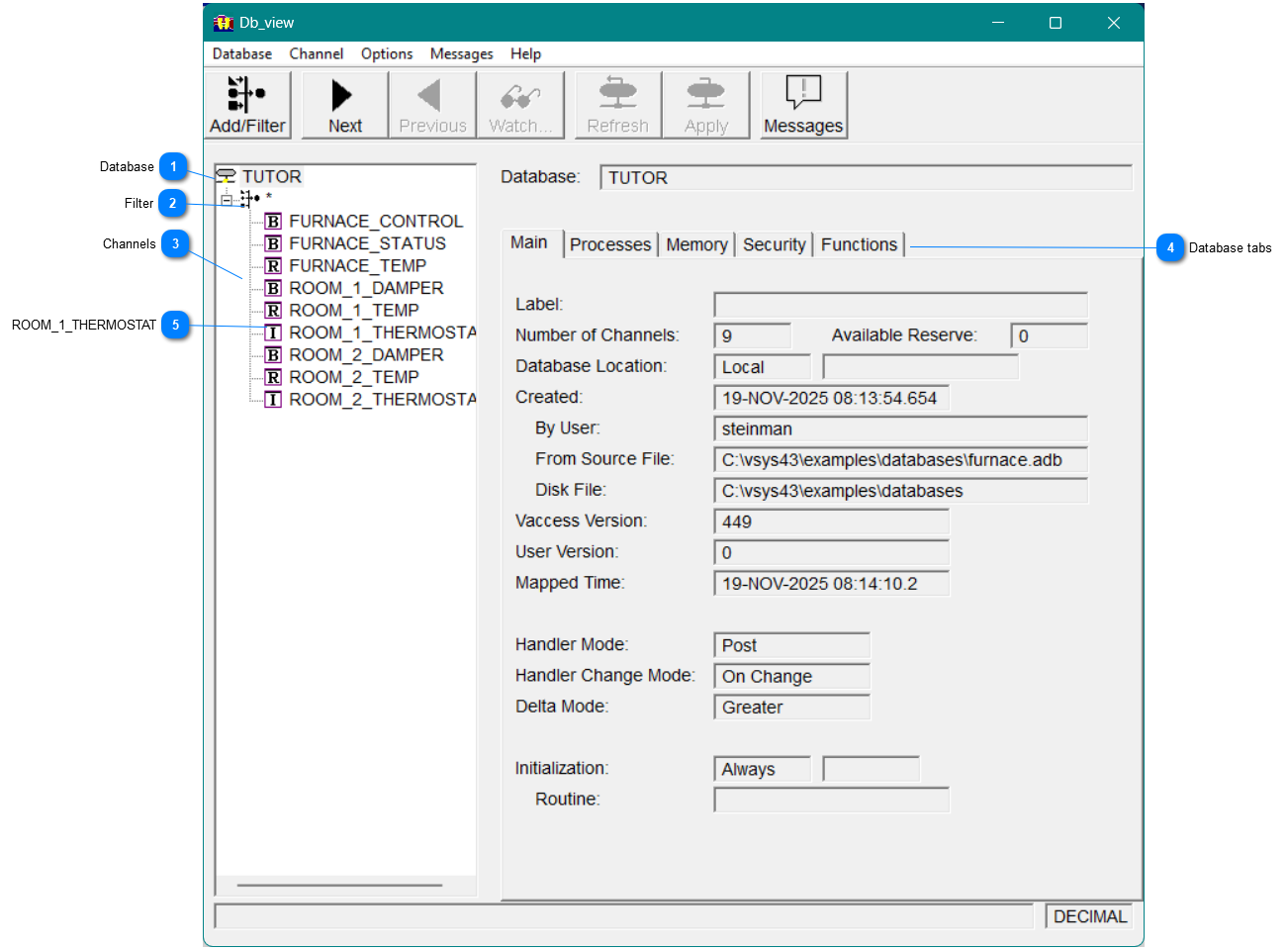
After you start db_view, the db_view dialog appears, as shown in Figure 26. Because the tutor database is selected in the list box, the tabs to the right display information related to this database.
Figure26 - Db_view dialog
Note You can resize the db_view window to show the full channel names if needed.
Database
The Tutor database is selected
Filter
The filter is set to display all channels
Channels
A list of the channels is display with an icon for the channel type.
Database tabs
Select a Tab to display the various information about the database.
ROOM_1_THERMOSTAT
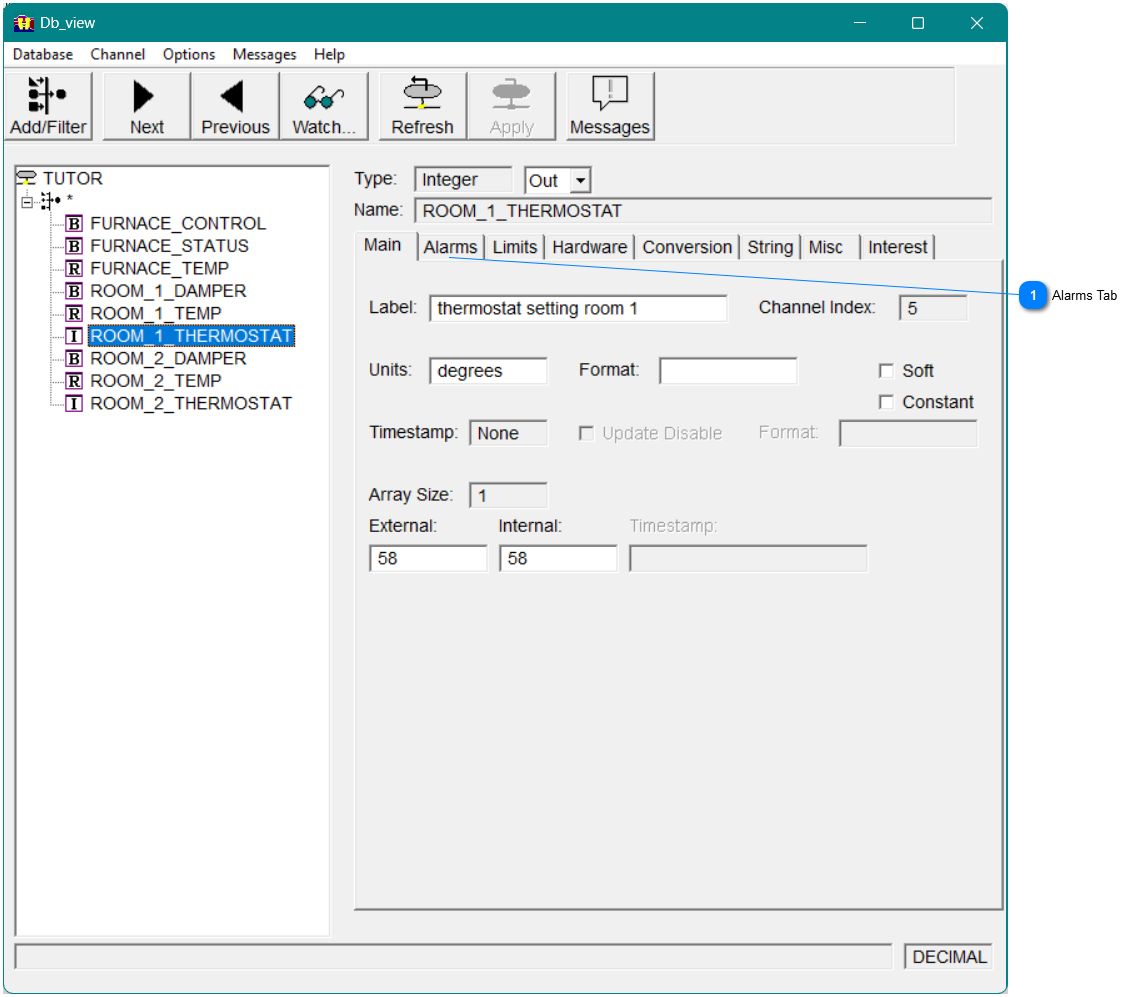
Select the channel tutor::room_1_thermostat by clicking on the channel name in the list box.
Figure27 - Db_view showing a channel selected
Alarms Tab
For this tutorial, select the Alarms tab to modify the following fields for the selected channel, tutor::room_1_thermostat .
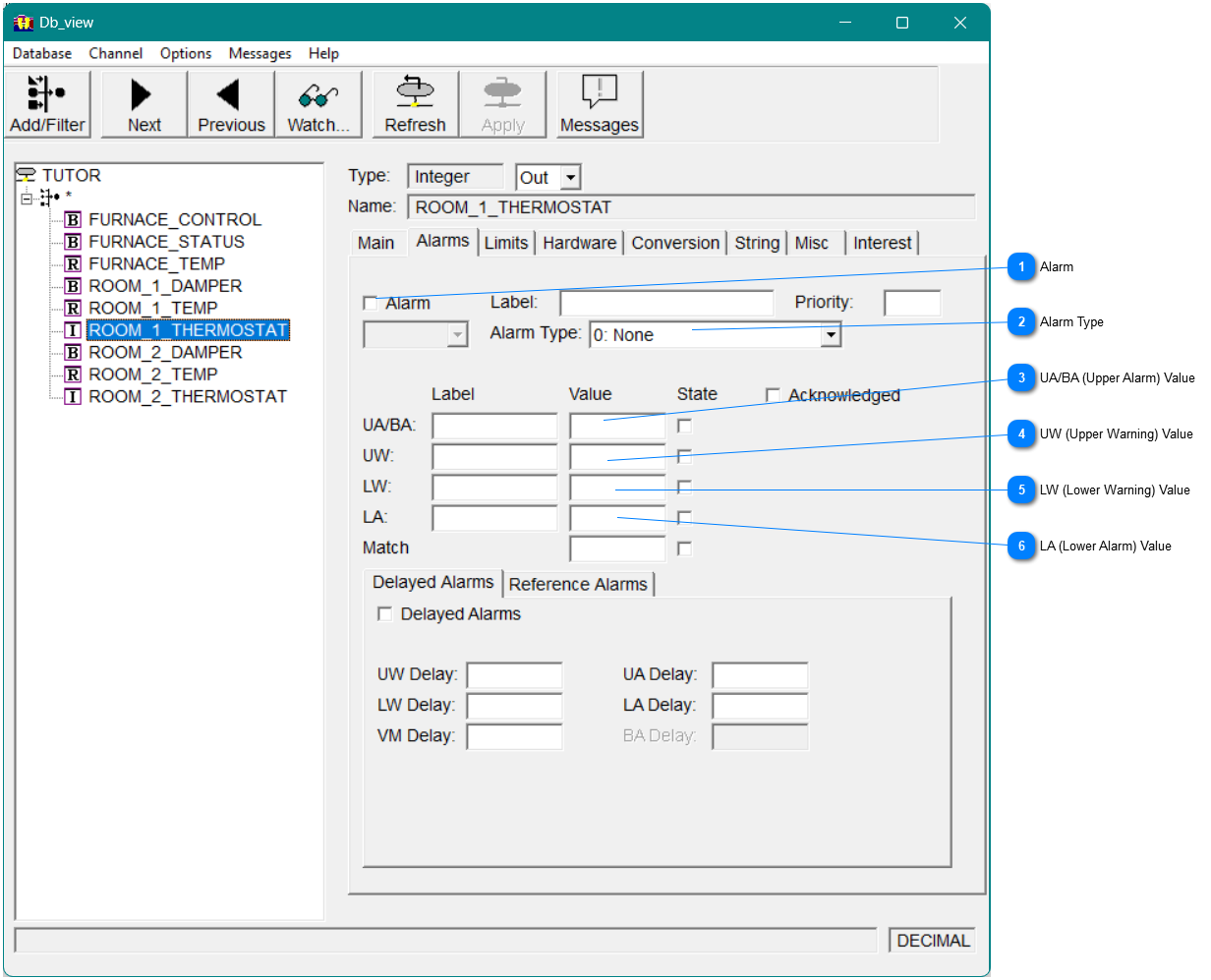
Alarm
Before new warning and alarm limits can appear on a control tool, you must activate alarm monitoring for this channel by clicking the Alarm checkbox in the upper left of the Alarms tab .
Alarm Type
Because the room_1_thermostat channel is an integer channel, you must set an alarm type of 1, 2, or 3:
Alarm type 1
Enables match alarms; that is, the alarm value exactly matches the channel value.
Alarm type 2
Enables a range of alarms.
Alarm type 3
Supports match alarms and a range of alarms simultaneously.
Because you did not define a match alarm, from the drop-down list, select 2:Range Alarms as the alarm type.
Note If the proper value is not entered as an alarm type, no alarms are signalled when the channel enters an alarm state.
UA/BA (Upper Alarm) Value
To specify the upper alarm value, enter 110.
UW (Upper Warning) Value
To specify the upper warning value, enter 100.
LW (Lower Warning) Value
To specify the lower warning value, enter 20 in the LW Value field.
LA (Lower Alarm) Value
To specify the lower alarm value, enter 10 in the LA Value field.
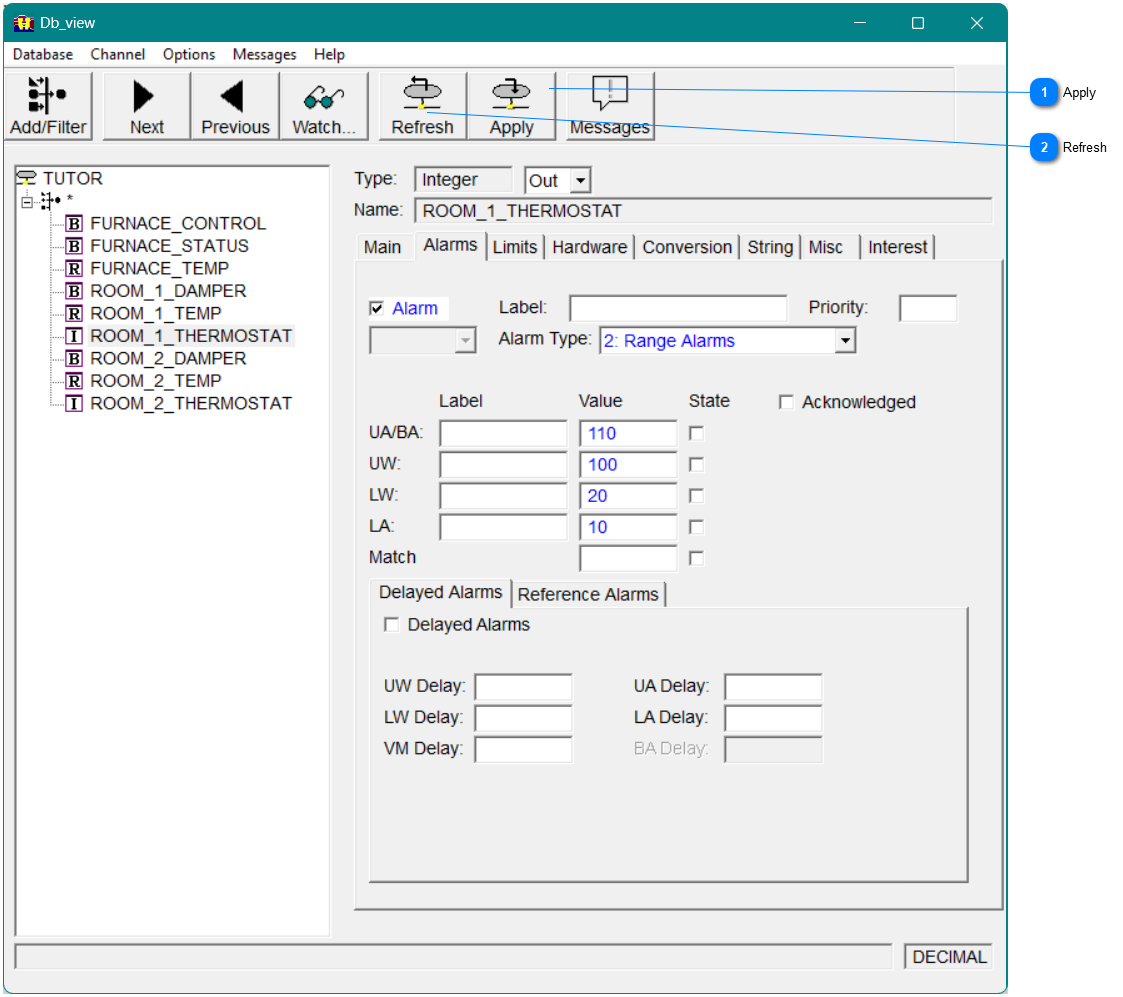
Apply
When you have completed these modifications, click the Apply button in the toolbar or select the Apply option on the Channel menu in the menu bar to update the channel in the database.
Refresh
If you have not yet selected Apply, you can restore the previous values by clicking the Refresh button in the toolbar or selecting the Refresh option on the Channel menu in the menu bar. In addition, Refresh can be used to update the fields in Db_view with any values that have been modified in the database.
To exit the Db_view window, select Exit on the Database menu in the menu bar.